MCP server
Audio Enhancer MCP
Enhance audio and video from Claude, ChatGPT, Cursor or any app that supports MCP. Ask it to clean up a podcast, fix the sound of a video, or master a song, and get the download link back in the chat.
Server URL
https://mcp.audioenhancer.com/mcp
What you can do
Clean up speech
Removes background noise and reverb, levels the speakers and normalises loudness for podcasts, interviews and voice-overs.
Master music
AI mastering for songs and instrumentals: loudness, clarity and tonal balance.
Fix the sound of videos
Send an MP4 or MOV and get the same video back with enhanced audio.
Stay in your chat
Share a link or upload a file, and the AI app starts the job, follows it and gives you the download link.
How it works
1
Connect once
Add the server URL to your AI app and sign in with your Audio Enhancer account.
2
Ask in a chat
“Clean up the audio of my episode” with a Dropbox, Google Drive or direct link, or upload the file.
3
Get the file
A minute or two later the app gives you the link to the enhanced file.
Set it up
Server URL to paste:
https://mcp.audioenhancer.com/mcp
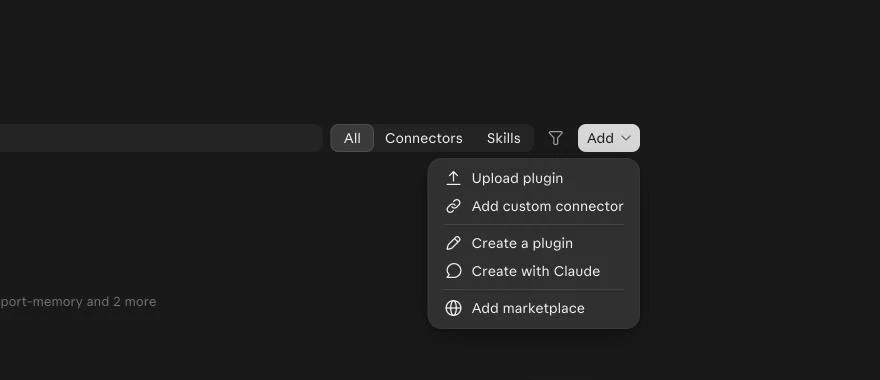
Step 1
Open Plugins and add a custom connector
In Claude, open Plugins, click Add and choose Add custom connector. Custom connectors need a paid Claude plan.
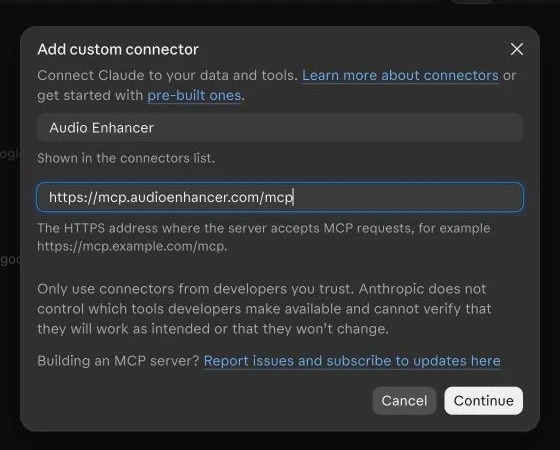
Step 2
Name it and paste the server URL
Type Audio Enhancer as the name, paste the server URL above, and click Continue.
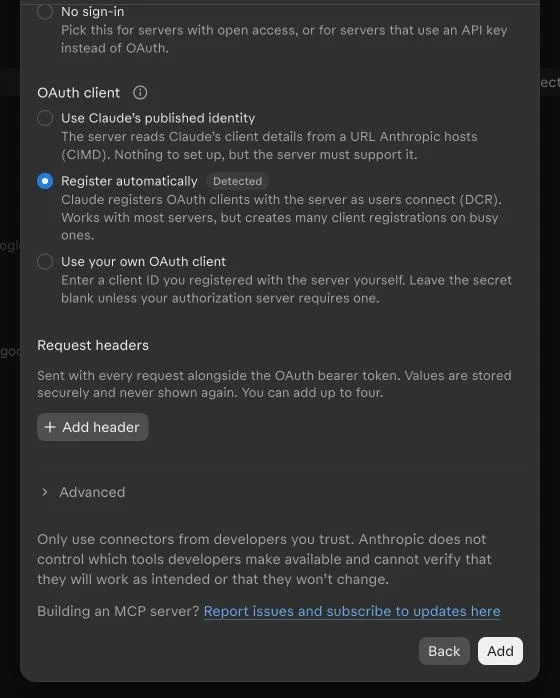
Step 3
Keep the detected sign-in and click Add
Claude finds the sign-in by itself (Sign in now, Register automatically). Leave the defaults and click Add.
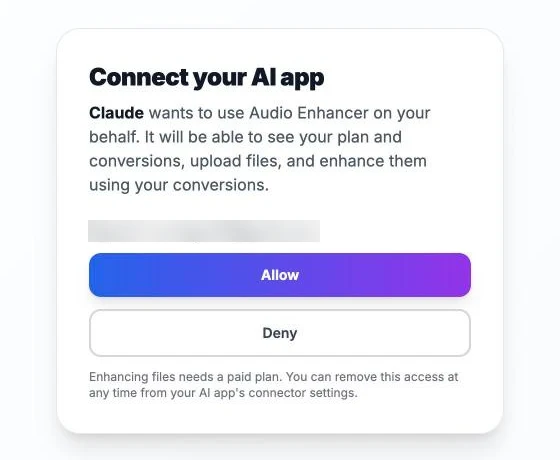
Step 4
Sign in to Audio Enhancer and click Allow
Claude opens the Audio Enhancer sign-in. Use your Audio Enhancer account and click Allow.
Step 5
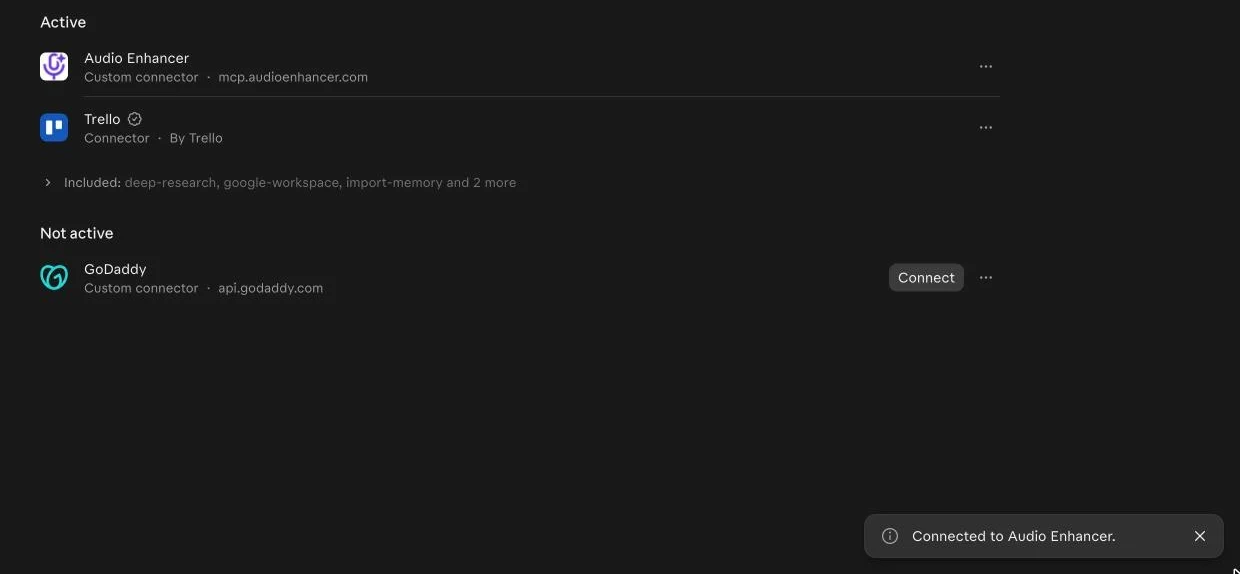
The connector is live
Audio Enhancer now shows under Active in your plugins.
Step 6
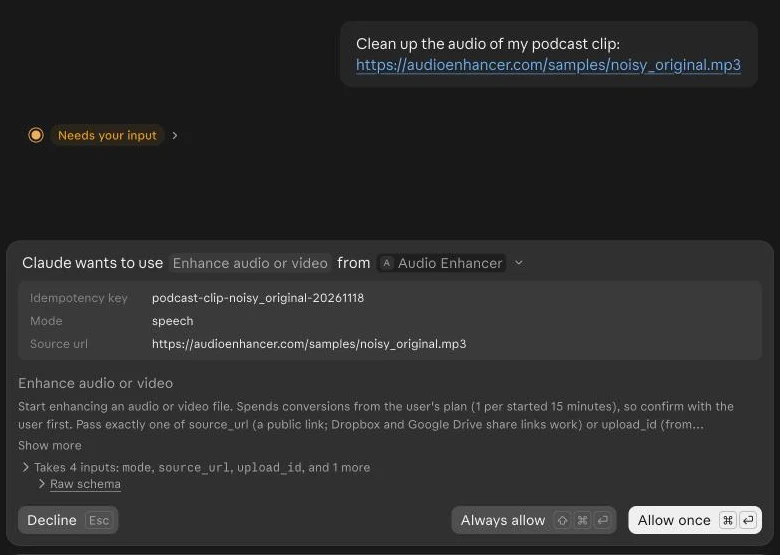
Ask Claude to enhance a recording
In any chat, ask for example “Clean up the audio of my podcast clip” with a link to the file. Claude asks before it starts, because enhancing uses conversions from your plan: 1 per started 15 minutes of audio or video.
Step 7
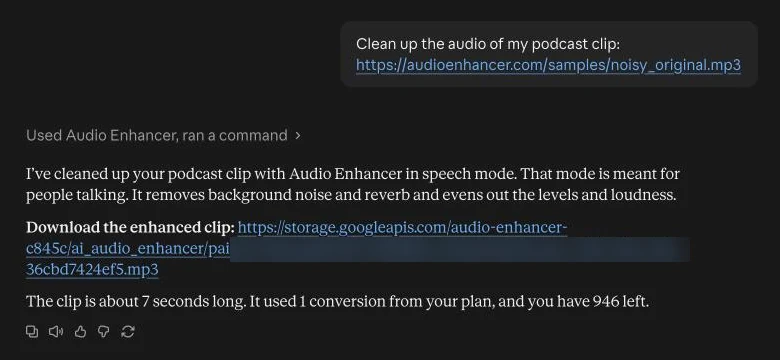
Download the enhanced file
When the job is done, Claude gives you the download link and how many conversions you have left.
What the AI app can do
The MCP server gives your AI app these tools. It decides when to use them, and asks you before spending conversions.
get_account- Your plan, whether it can enhance files, and how many conversions are left.
list_enhancement_modes- The modes (speech, music), accepted file types and billing rules.
create_upload- A link to upload a file from your computer, for when there is no public link.
enhance_media- Starts enhancing a file from a link or an upload. Uses conversions from your plan.
get_job- Checks a job and returns the download link when it is done.
list_jobs- Your recent jobs, with download links for finished ones.
Plans and limits
- Enhancing files needs an active Audio Enhancer subscription. Without one, you can connect and see your account.
- Billing is the same as on the website: 1 conversion per started 15 minutes of media.
- Files up to 4 hours long, up to 3 files processing at the same time.
- Audio (MP3, WAV, M4A, FLAC and more) comes back as MP3; video (MP4, MOV and more) comes back as MP4 with the enhanced sound.
Privacy and security
- Your AI app connects with a standard OAuth sign-in: you sign in on audioenhancer.com and choose Allow or Deny.
- It can see your plan, conversions and jobs, upload files and start enhancements. It cannot change your plan or billing.
- Remove the connector in your AI app, or revoke an API key below, to stop access.
- Links must be public web addresses. Uploaded files are stored like uploads on the website.
Loading…
Questions
- What is the Audio Enhancer MCP?
- An MCP (Model Context Protocol) server that lets AI apps such as Claude and ChatGPT use Audio Enhancer for you: enhance speech, master music and fix the sound of videos from a chat.
- Which apps does it work with?
- Claude (web, desktop and Claude Code), ChatGPT, Cursor and other apps that support remote MCP servers. Apps that sign in with OAuth just need the server URL; others can use an API key.
- Do I need a paid plan?
- Enhancing files needs an active Audio Enhancer subscription, and custom connectors need a paid plan in Claude or ChatGPT. You can connect and check your account without a subscription.
- What can the AI app do with my account?
- See your plan and remaining conversions, upload files, start enhancements and fetch the results. It cannot change your plan or billing.
- How do I give it my file?
- Share a public link (Dropbox, Google Drive or a direct URL), or the app gives you an upload link where you drop the file.
- How is it billed?
- The same as on the website: 1 conversion per started 15 minutes of audio or video, from your plan. The app asks before spending conversions.
- Does it work with video?
- Yes. The sound of the video is enhanced and you get the video back as MP4 with the new audio.
- How do I disconnect it?
- Remove the Audio Enhancer connector or plugin in your AI app's settings. API keys can be revoked on this page.