Why AI Audio Enhancement Sounds Metallic (And How to Fix It)

A common complaint from podcasters, video creators, and interviewers is that AI-enhanced audio sometimes sounds metallic, artificial, robotic, or over-processed. This isn't subtle. In many cases, the enhanced version sounds worse than the original.
I've heard this feedback countless times from creators who tried AI audio enhancement tools, only to end up with audio that sounds like it was processed through a robot. This article explains what's actually going wrong under the hood, why this happens more with some tools than others, and what the most reliable fix is today.
The real cause: over-suppression and forced reconstruction
The metallic or robotic sound most people complain about is not random. It almost always comes from the same technical trade-off.
Most AI enhancers do two things at once. They aggressively suppress noise and reverb, and then reconstruct speech where information was removed. When suppression goes too far, the model removes not only noise, but also micro-detail in the voice, natural harmonics, and subtle room cues that make speech sound human.
To compensate, the model then rebuilds parts of the signal it believes are missing. That reconstruction is where the metallic or synthetic texture appears. I've processed recordings where the AI removed so much that it had to guess what the voice should sound like, and those guesses often sound artificial.
Why this happens more with some AI tools than others
After testing various AI enhancement tools, I've noticed clear patterns in which ones produce metallic or robotic artifacts and which don't.
One-size-fits-all processing
Many enhancers, especially free or freemium ones, apply a single aggressive profile to all audio. That profile is designed to impress on bad recordings, remove as much noise as possible, and produce an obvious before versus after comparison.
The problem is that not all recordings need aggressive cleanup. Voices differ wildly in timbre, and rooms and microphones behave differently. Without adaptation, the model overshoots, and artifacts appear.
I've seen the same tool produce perfect results on one recording and metallic artifacts on another, simply because it used the same aggressive settings for both.
No control over processing strength
If the tool doesn't allow you to dial back intensity, you're stuck with whatever the model decides is best. This is why users often report free tiers sounding harsher than paid ones, with metallic or robotic artifacts appearing more often in the free version.
You're hearing over-correction with no escape hatch. I've processed recordings through free tools that sounded fine but had that subtle robotic quality, and there was nothing I could do to fix it without upgrading.
Generative shortcuts instead of conservative restoration
Some enhancers lean too heavily on generative reconstruction instead of conservative denoising. This works well for extremely bad audio and demo-style transformations, but for real speech, it increases the risk of synthetic timbre, robotic texture, and loss of speaker identity.
The model starts inventing speech instead of revealing it. I've processed recordings where the AI enhancement made the speaker sound like a completely different person, with a voice that was technically clean but completely unnatural.
Why fixing it in post rarely works
Once metallic or robotic artifacts are introduced, EQ can't fully remove them. De-essing only masks symptoms, and further noise reduction often makes it worse. That's because the problem is baked into the signal.
At that point, the real fix is not another plugin. It's not creating the artifacts in the first place. I've tried to fix over-processed audio with manual editing software, and while you can improve it slightly, you can never fully recover the natural character that was lost. The problem is that once the artifacts are baked in, even professional editing tools struggle to remove them completely.
The only reliable fix: use an enhancer that prioritizes naturalness
In practice, creators who stop seeing metallic or robotic artifacts switch to enhancers that are conservative by default, adapt processing to the input, preserve vocal harmonics, avoid aggressive generative fill-in, and aim for natural speech rather than maximal cleanup.
This is why some tools consistently produce clean results even in heavy echo, noisy rooms, remote interviews, and video audio, while others fail on exactly those cases. The difference isn't in how much they clean, but in how they balance cleaning with preservation. For a detailed comparison of audio enhancers that prioritize naturalness, see our guide to the best tools available today.
Where AudioEnhancer.com fits in
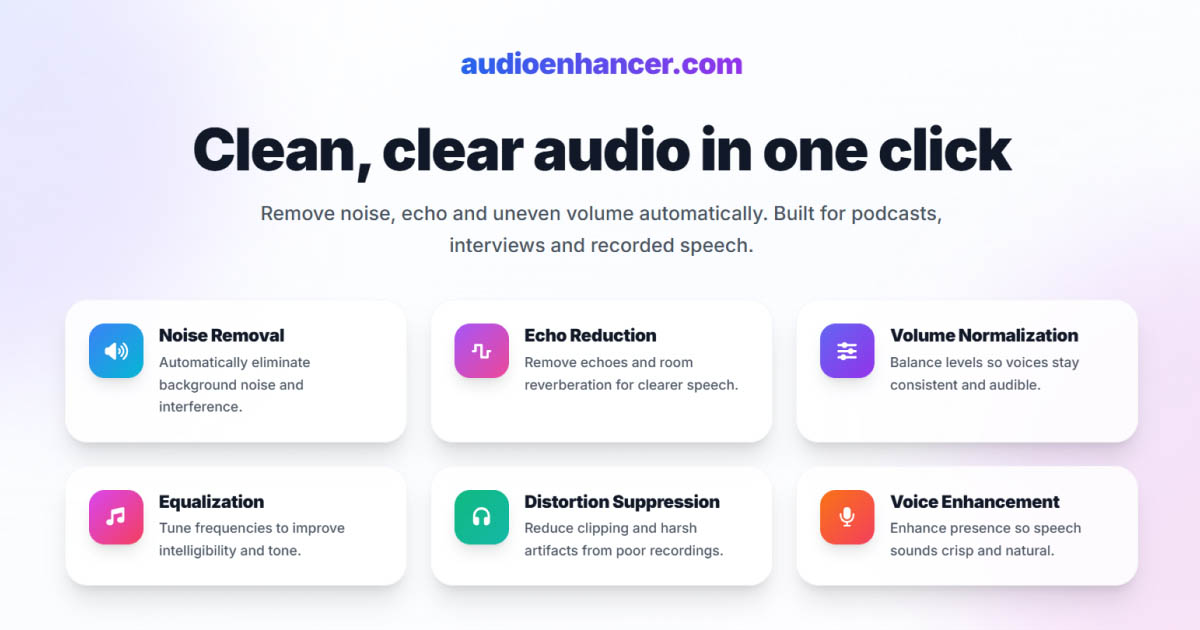
AudioEnhancer.com was built around one core constraint: never fix the audio by destroying the voice. Instead of pushing suppression to the limit, it focuses on preserving vocal texture, reducing echo and noise without flattening harmonics, avoiding the AI sheen that many tools introduce, and producing speech that still sounds like a real person.
That's why, in practice, it handles difficult recordings without the metallic or robotic artifacts users associate with AI enhancement. Not because it cleans harder, but because it knows when not to.
If you want to hear the difference for yourself, check out the audio samples on our homepage. You can compare recordings with heavy noise and echo before and after enhancement, and you'll notice that the enhanced versions maintain natural voice characteristics without that metallic or robotic quality.
Final takeaway
Metallic or robotic-sounding audio enhancement happens when tools prioritize aggressive cleanup over naturalness. The fix isn't to add more processing. It's to use tools that understand the difference between cleaning audio and preserving what makes human speech sound human.
When an enhancer knows when to stop, you get professional-quality results without the artifacts. When it doesn't, you get audio that's technically clean but sounds like it was processed by a robot.